
Setup your Free Router
Please contact Customer Support to request delivery of the optional free router.
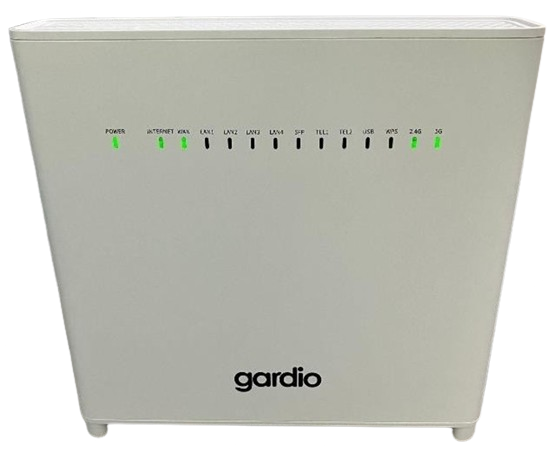
Setup your Free Router
Current Model: HT-178AX Dual-Band WiFi6 AX5400 smart gateway router
Please contact Customer Support to request delivery of the optional free router.
CONNECTING YOUR FREE ROUTER
CONNECTING YOUR FREE ROUTER
Box Contents
1 HT-178AX Gateway Router
1 Power Adapter
1 Ethernet Cable
1 RJ-11 Telephone Cable (Not Used)
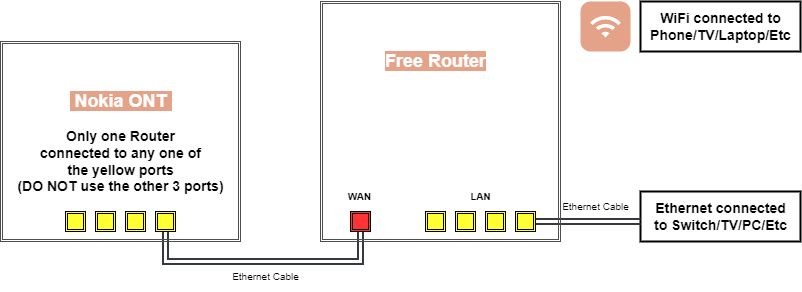
Connect your Free Router following the diagram above once you have 3 green lights on the Nokia (black box) PWR, PON and AUTH.
1. Connect the ethernet cable that comes with the Gardio Router to the WAN port (red) at the back.
2. Connect the other end of the ethernet cable to any yellow port on the Nokia ONT (black box) DO NOT CONNECT ANYTHING ELSE TO THE OTHER YELLOW PORTS
3. Attach the power adapter to the Gardio router and power on using the button on the side of the Router.
4. After about 5mins the Router will show 5 green lights. Power, Internet, WAN, 2.4GHz and 5GHz
If after 5mins of being powered on and the ‘Internet’ light is not showing, please contact Customer Support.
5. Once all 5 lights have appeared on the Router you may now proceed in setting up your router. To do this you will need to download the Plume App shown below and follow the instructions.
If for any reason are unable to download the Plume App, contact Customer Support who can setup the router for you.
Box Contents
1 HT-178AX Gateway Router
1 Power Adapter
1 Ethernet Cable
1 RJ-11 Telephone Cable (Not Used)
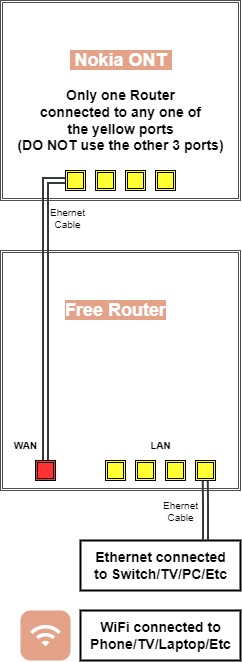
1. Connect the ethernet cable that comes with the Gardio Router to the WAN port (red) at the back.
2. Connect the other end of the ethernet cable to any yellow port on the Nokia ONT (black box) DO NOT CONNECT ANYTHING ELSE TO THE OTHER YELLOW PORTS
3. Attach the power adapter to the Gardio router and power on using the button on the side of the Router.
4. After about 5mins the Router will show 5 green lights. Power, Internet, WAN, 2.4GHz and 5GHz
If after 5mins of being powered on and the ‘Internet’ light is not showing, please contact Customer Support.
5. Once all 5 lights have appeared on the Router you may now proceed in setting up your router. To do this you will need to download the Plume App shown below and follow the instructions.
If for any reason are unable to download the Plume App, contact Customer Support who can setup the router for you.
SETUP ROUTER USING PLUME APP
SETUP ROUTER USING PLUME APP
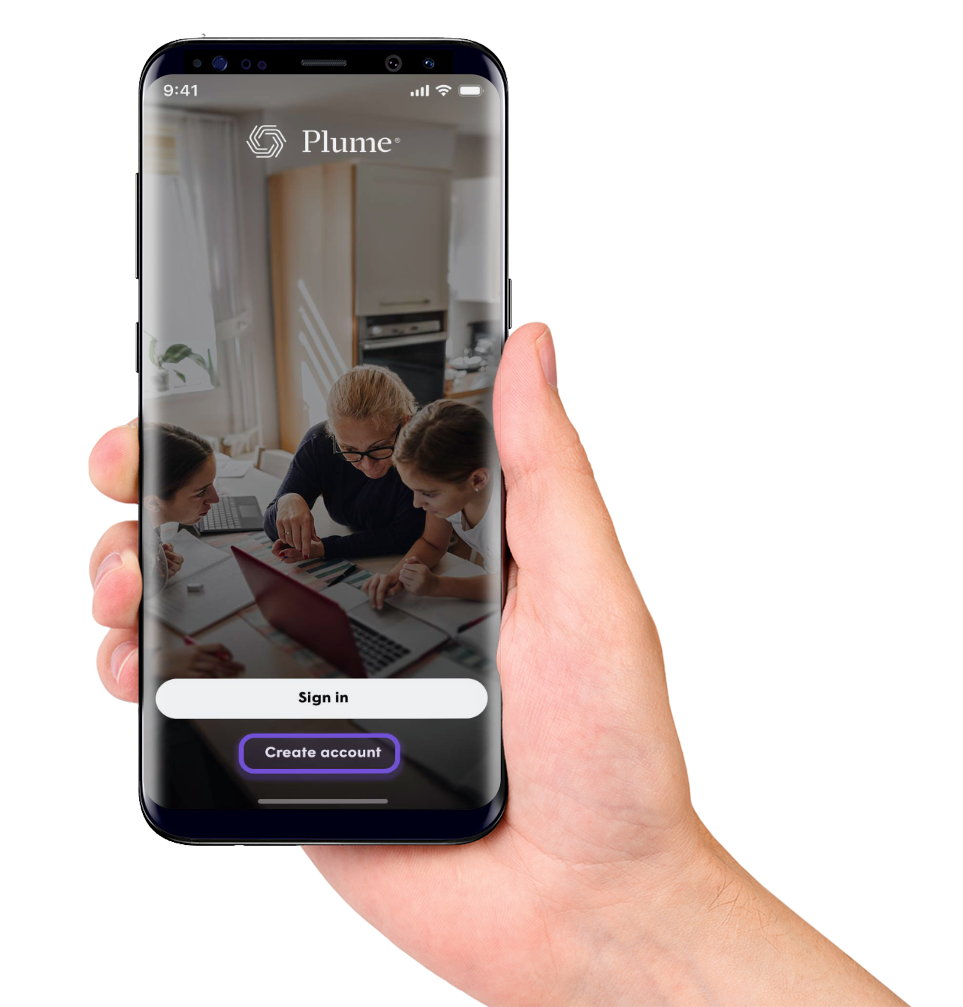
 Once you have the ‘Internet’ light showing green you can now download and install the Plume Home App from either from the App store (IOS) or Play Store (Android) using the links below.
Alternally, if you rather not have the App installed on your phone for some reason, you can contact Customer Support who will remotely setup the router for you. Make sure you have your details ready when calling (email address and the name of your WiFi you require with it’s password)

 Once you have the ‘Internet’ light showing green you can now download and install the Plume Home App from either from the App store (IOS) or Play Store (Android) using the links below.
Alternally, if you rather not have the App installed on your phone for some reason, you can contact Customer Support who will remotely setup the router for you. Make sure you have your details ready when calling (email address and the name of your WiFi you require with it’s password)
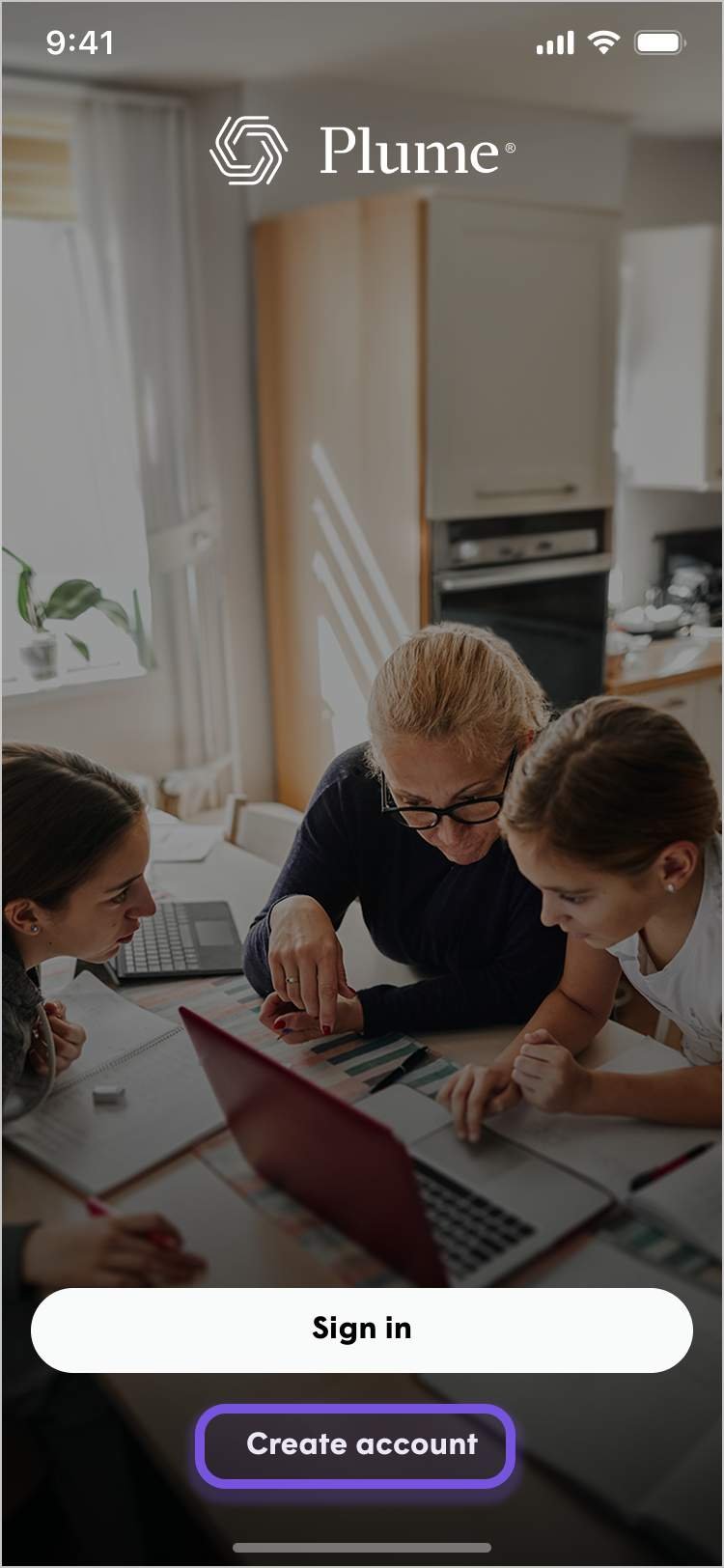
1
Normally you will ‘Sign In’ to administer your network but since your are seting up your router for the first time, please select Create account.
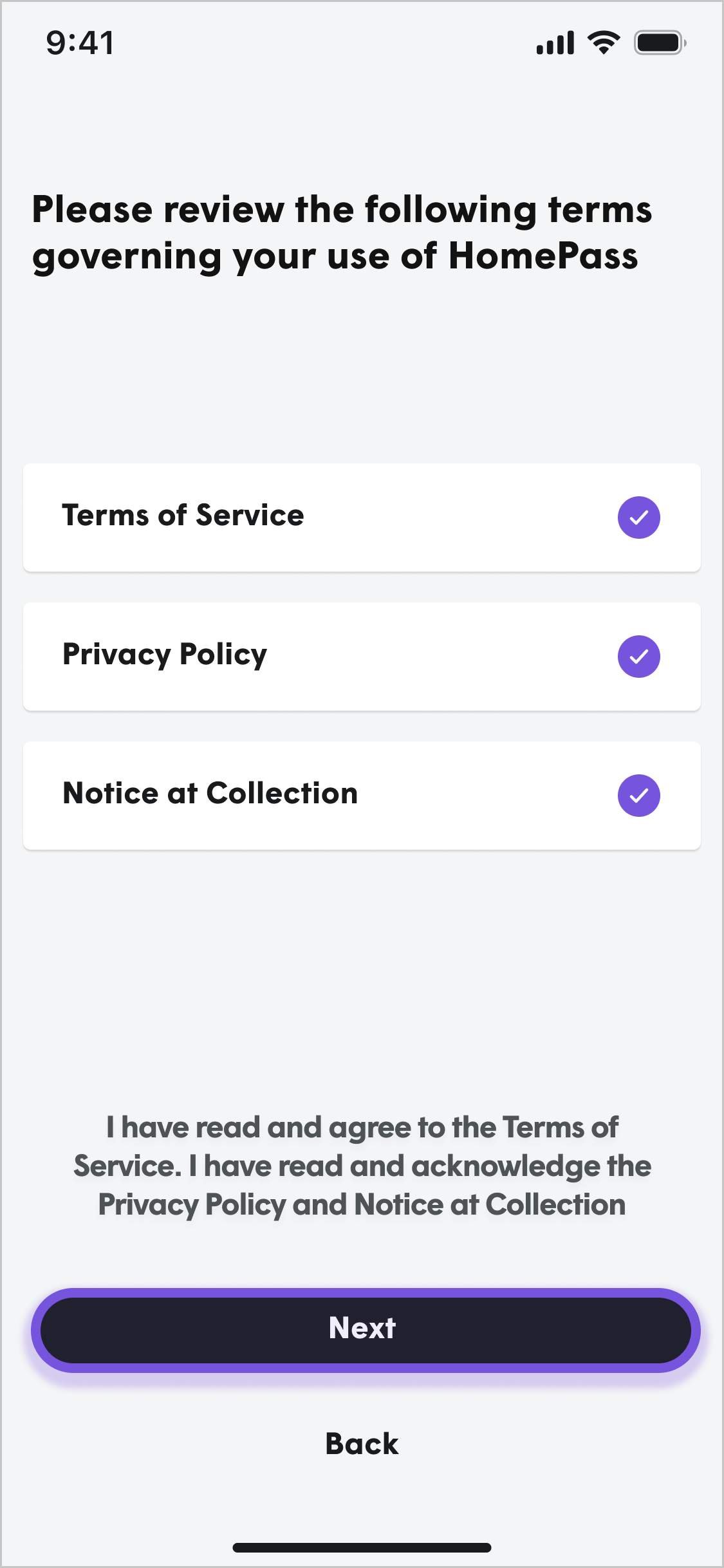
2
You must accept the Terms & Conditions in order to continue. Tap on each to review the document before accepting. Once all Terms & Conditions have been accepted the Next button will become available. Tap it to proceed.
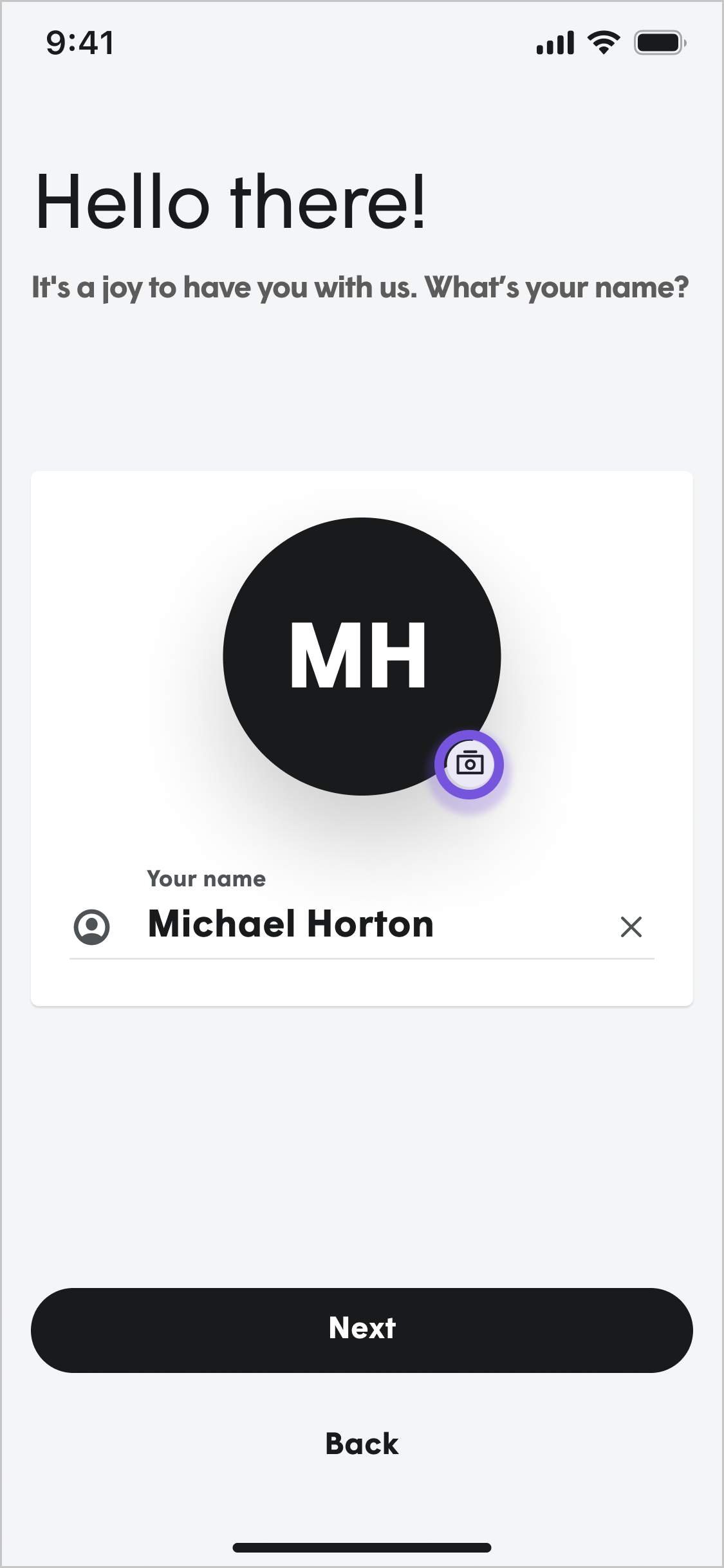
3
This is where you create your cloud account with Plume online so you can manage your gateway router using the app or your browser.
Enter first name then a space then your surname e.g. Fred Bloggs. The camera icon can be used to take a picture or select a picture from the device’s gallery.
Press Next when done
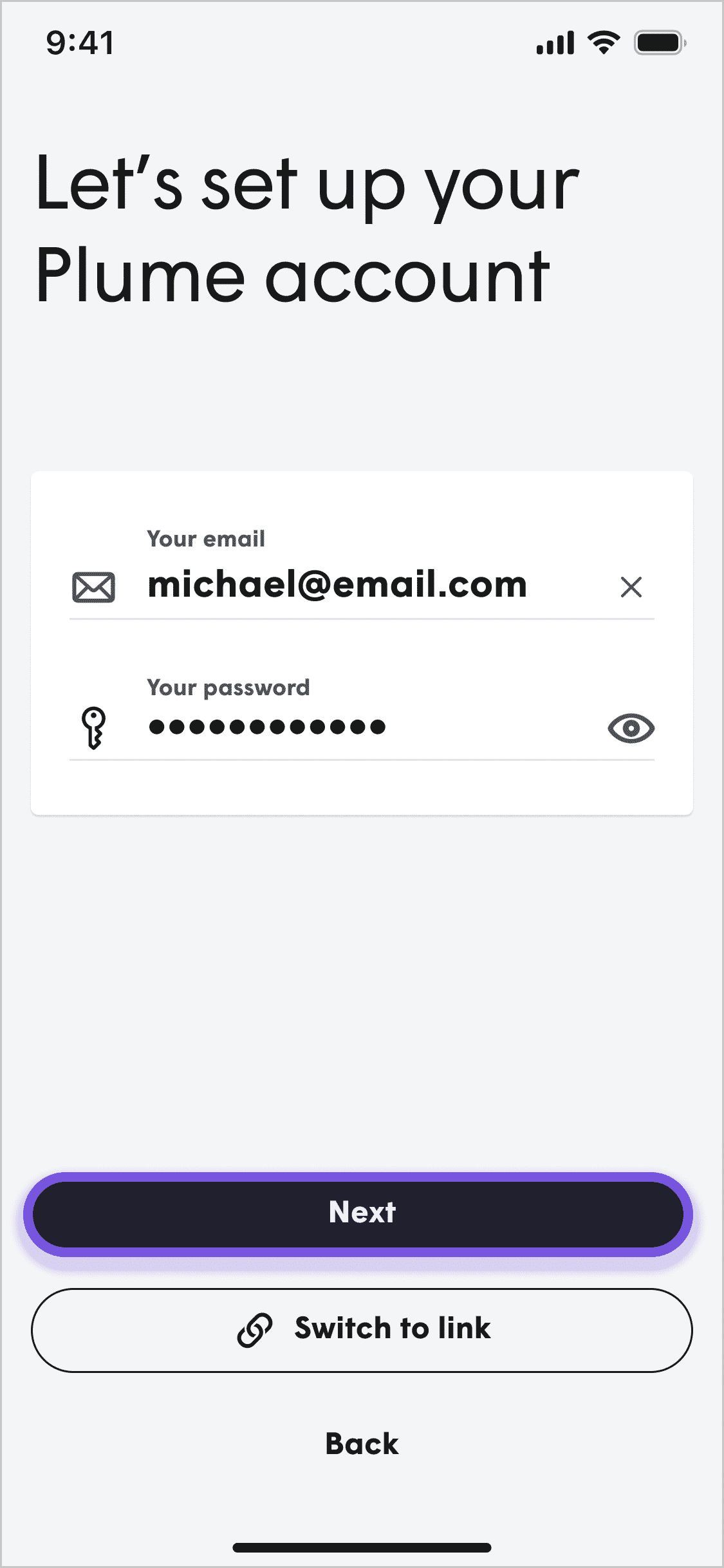
4
Enter your email address that you will use for verifying it is you when using the Plume Home App to administer your network.
Then press Next
5
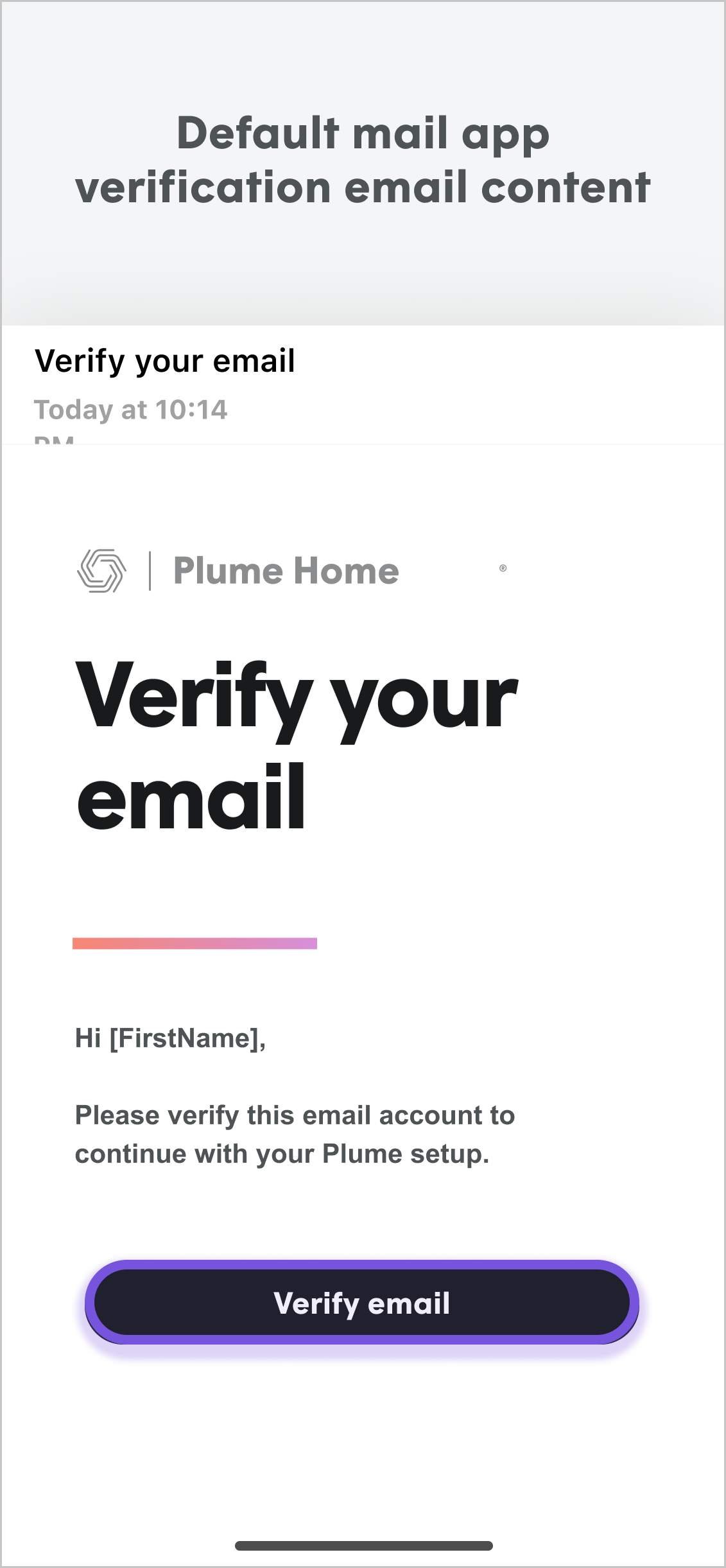
Before proceeding you must verify your email address. Open your email app and find the verification email. Tap on the link in the email. This will open a browser confirmation with a link that will re-open the Plume Home App on the device
6
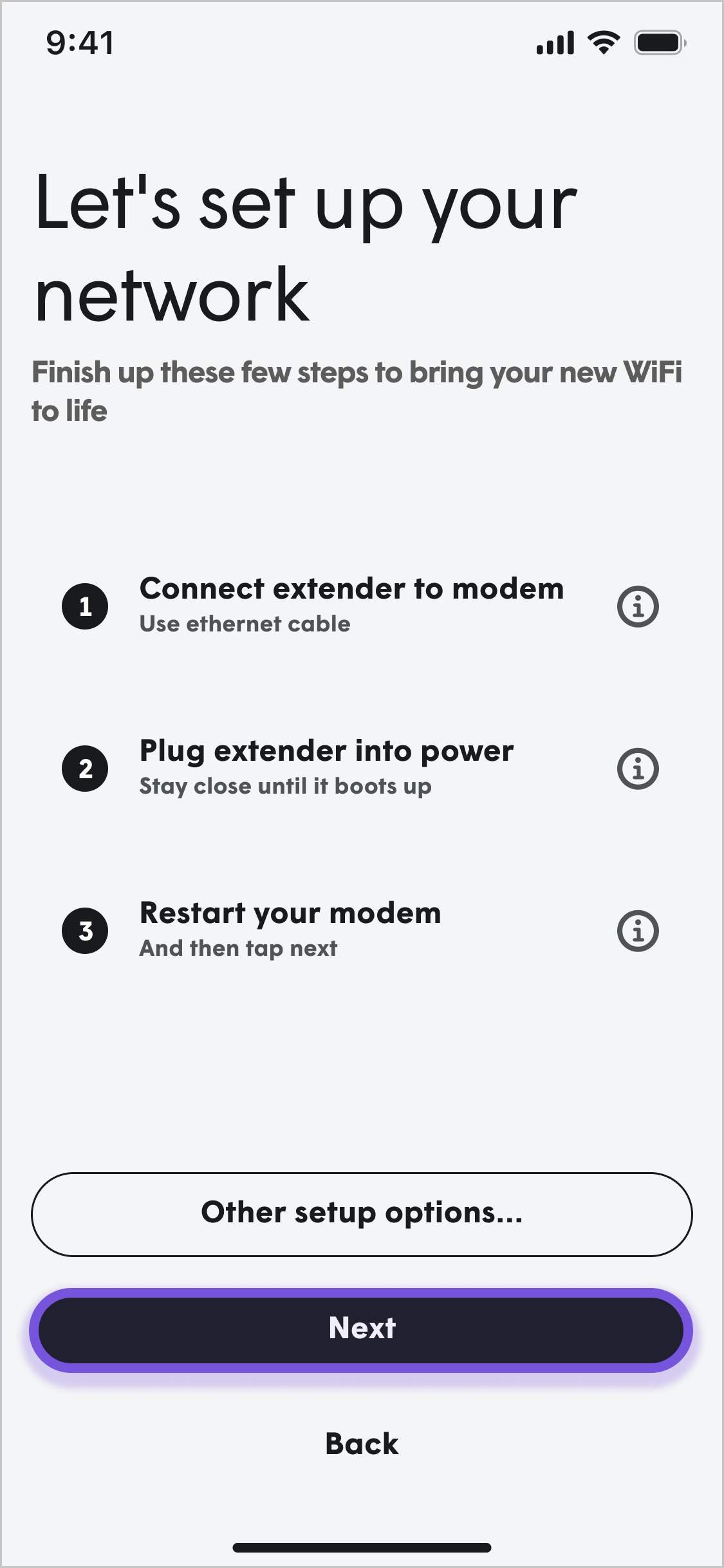
Choose ‘Other Setup Options’ then scan the QR code (or add the serial number manually) located at the back of the Gardio router
7
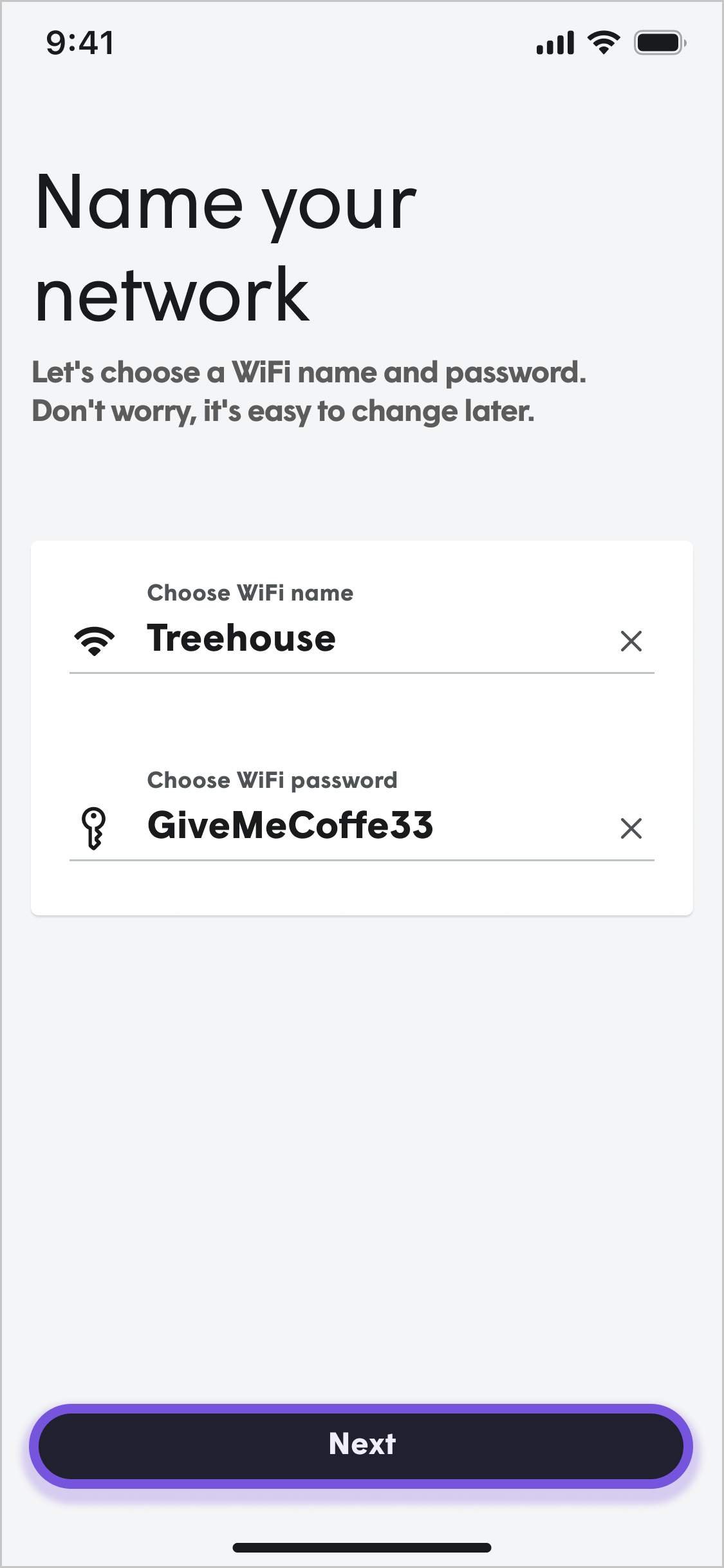
The WiFi name (SSID) and password must be entered before the Next button will be available. Passwords must be between 8 and 63 characters in length.
Tap Next to proceed.
8
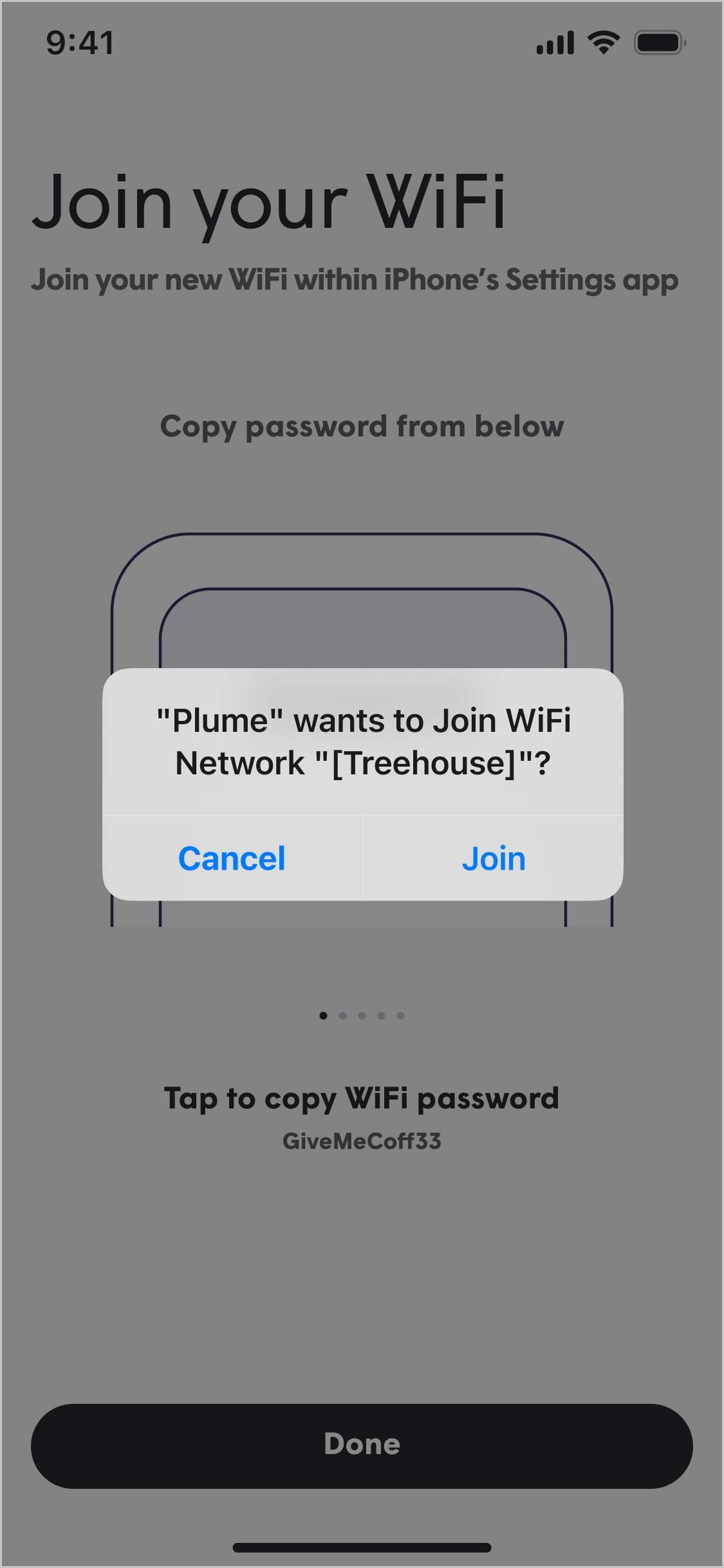
You will be prompted to join the network. Android users will be able to connect to the network in the Plume Home app. iOS users will need to access the devices connection settings to connect.
Tap Done to proceed.
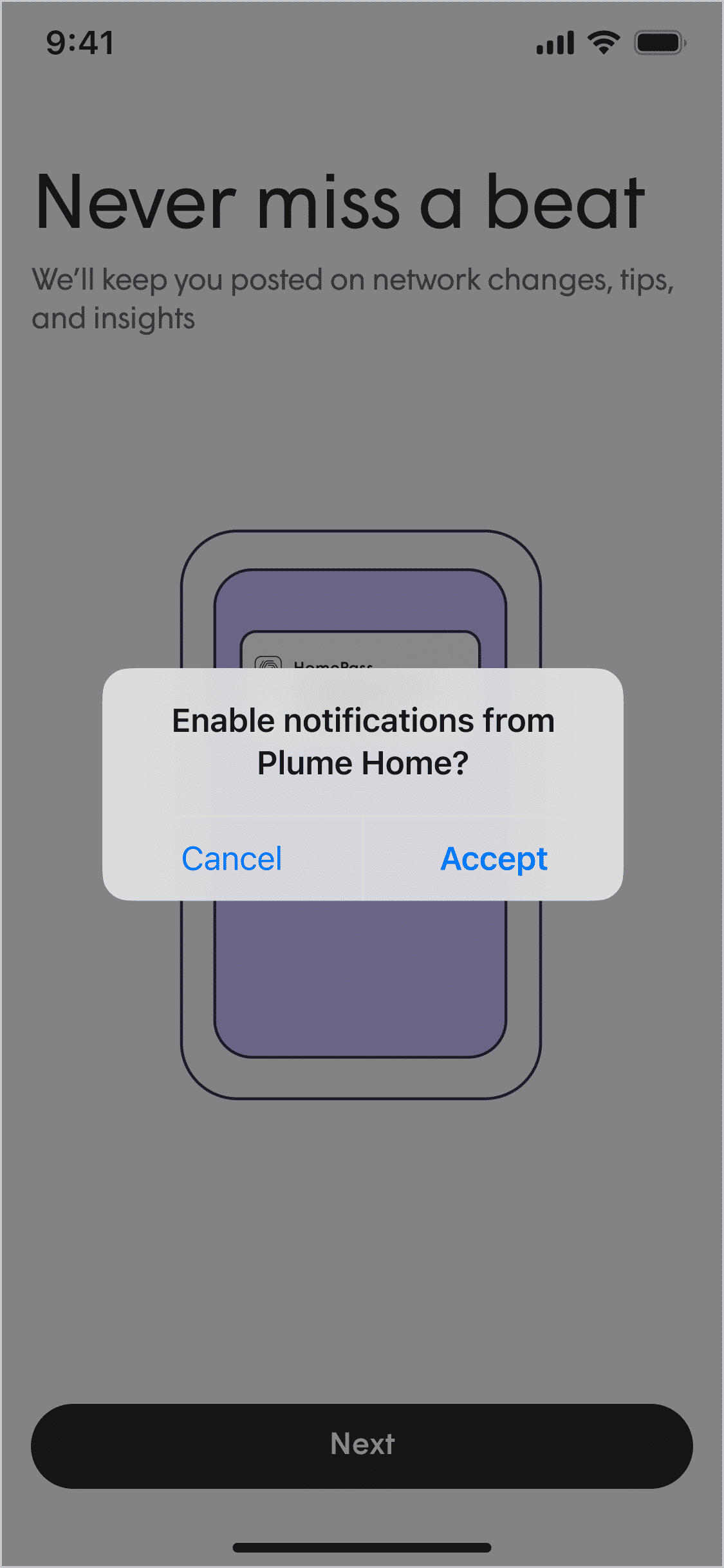
9
Choosing to Enable notifications, will send a push alert to the your phone.
Tap the Next button to proceed.
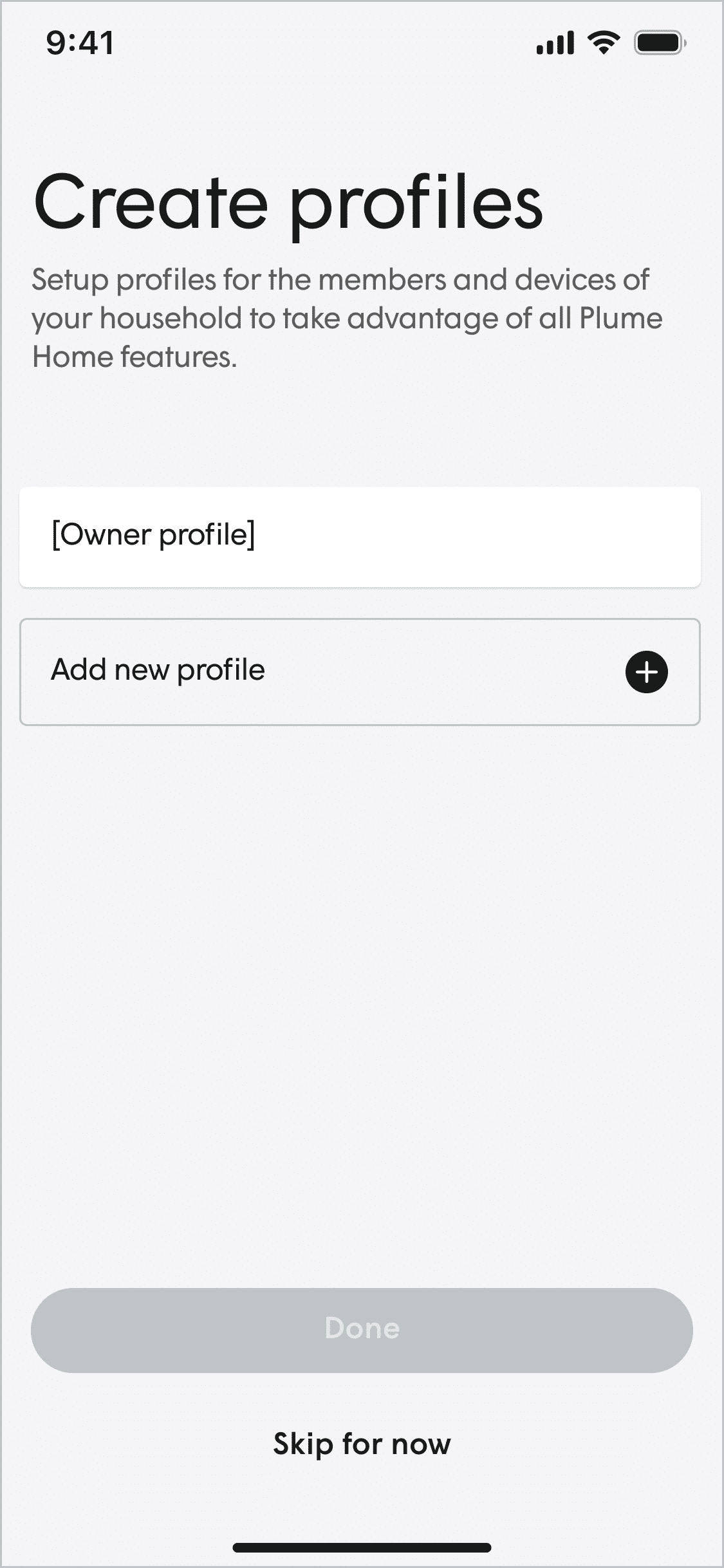
10
Once setup is complete a splash screen is shown. Tapping Next opens a Profile creation screen, you may skip this for now.
Tapping Done or Skip for now will open several customer education screens.
Congratulations, you have completed the setup of your router
Tip
If you are asked to turn off your old WiFi
Click Yes, I turned it off
You do not need to turn off your old WiFi since you are not using the older copper wire you are on a complete separate fibre infrastructure.
Congratulations.
You have now completed the setup of your gateway router. You can start connecting your devices to your WiFi and the ethernet LAN ports at back of router.
The Plume Home App will be where you manage your router settings which includes changing WiFi details and checking the internet speed from your chosen ISP.
you can find a FAQ on how to use the Plume Home App by going to support.plume.com
HT-178AX Gateway Router Details
WAN Interface
Multi-Access WAN
VDSL 35B; GE WAN; SFP cage (1Giga) for P2P and G.PON
LAN Interface
4X1GE; 1XUSB;
VoIP
2xFxS
WiFi 6
Dual-band
5GHz 4X4 11ax + 2.4GHz 2X2 11ax
Wireless Date Rate
Up to 5.4 Gbps
5GHz – 4.8Gbps + 2.4GHz – 600Mbps
Mesh Network
Supported
EasyMesh R2.0
Containerized SW
Supported
Management
TR69/TR181 Data Model
4G/5G Backup
Supported
Auto sense mechanism
OpenSync Ready
Supported OpenSync by Plume
HomePass App Support
HomePass Plume Support
HT-178AX Gateway Router Details
WAN Interface
Multi-Access WAN
VDSL 35B; GE WAN; SFP cage (1Giga) for P2P and G.PON
LAN Interface
4X1GE; 1XUSB;
VoIP
2xFxS
WiFi 6
Dual-band
5GHz 4X4 11ax + 2.4GHz 2X2 11ax
Wireless Date Rate
Up to 5.4 Gbps
5GHz – 4.8Gbps + 2.4GHz – 600Mbps
Mesh Network
Supported
EasyMesh R2.0
Containerized SW
Supported
Management
TR69/TR181 Data Model
4G/5G Backup
Supported
Auto sense mechanism
OpenSync Ready
Supported OpenSync by Plume
HomePass App Support
HomePass Plume Support
Need wider WiFi coverage
Please contact Customer Support to request delivery of the WiFi Mesh Extender.
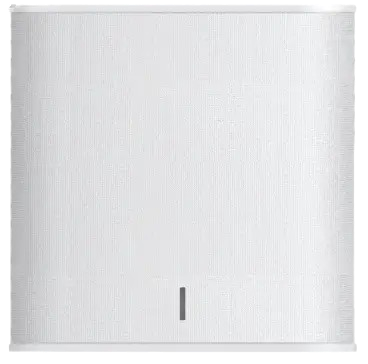
Need wider WiFi coverage
Please contact Customer Support to request delivery of the WiFi Mesh Extender.