
WiFi Mesh Extender
Current Model: ERO1x Dual-Band WiFi6 AX3000 MESH Extender
Please contact Customer Support to request delivery of the WiFi Mesh Extender.
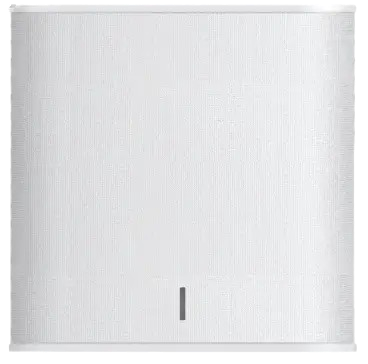
WiFi Mesh Extender
Current Model: ERO1x Dual-Band WiFi6 AX3000 MESH Extender
Please contact Customer Support to request delivery of the WiFi Mesh Extender.
CONNECTING YOUR WIFI MESH EXTENDER (POD)
CONNECTING YOUR WIFI MESH EXTENDER (POD)
Box Contents
1 WiFi Mesh Extender
1 Ethernet Cable
Login to the Plume Home App on your phone
On the Home page of the app..
1. Tap the “…” icon to open the Options Menu
2. Tap on “Add a pod”
3. Select “Other setup options…”
4. Choose to either “Scan a QR code” or “Enter a serial number” (The QR code and serial number are located on the right side of the extender)
5. Follow the on-screen prompts to complete the addition of the device.
Plug your Extender into a power socket in the same room when setting up for the first time.

The App via the Router will start detecting your Extender and it will be shown using lights on the front of the Extender.
Red = Error
Blue = Configuration in process
White = Ready
The extender will automatically adopt the Wi-Fi settings (SSID and password) from your main router to create a single mesh network.
After pairing, you can move the extender to an area in your home with weak Wi-Fi reception, ideally within 10 meters of the main router.
The extender needs to be close enough to your router to receive a strong signal itself, but far enough to effectively extend coverage to the desired area.
Upon successful connection, the extender’s indicator light will turn white. A blinking light may indicate a weak signal, so adjust the location if necessary.
Box Contents
1 WiFi Mesh Extender
1 Ethernet Cable
On the Home page of the app..
1. Tap the “…” icon to open the Options Menu
2. Tap on “Add a pod”
3. Select “Other setup options…”
4. Choose to either “Scan a QR code” or “Enter a serial number” (The QR code and serial number are located on the right side of the extender)
5. Follow the on-screen prompts to complete the addition of the device.
Plug your Extender into a power socket in the same room when setting up for the first time.
The App via the Router will start detecting your Extender and it will be shown using lights on the front of the Extender.
Red = Error
Blue = Configuration in process
White = Ready
The extender will automatically adopt the Wi-Fi settings (SSID and password) from your main router to create a single mesh network.
After pairing, you can move the extender to an area in your home with weak Wi-Fi reception, ideally within 10 meters of the main router.
The extender needs to be close enough to your router to receive a strong signal itself, but far enough to effectively extend coverage to the desired area.
Upon successful connection, the extender’s indicator light will turn white. A blinking light may indicate a weak signal, so adjust the location if necessary.
ERO1x Dual-Band WiFi6 AX3000 MESH Extender Details
LAN Interface
1 1GB
1 USB v2.0
WiFi 6
Dual-band
5GHz 2X2 11ax + 2.4GHz 2X2 11ax
Wireless Data Rate
Up to 3000Mbps
5GHz – 2400Mbps + 2.4GHz – 600Mbps
Mesh Network Supported
EasyMesh R2.0
Management
TR69/TR181 Data Model
OpenSync Ready
Supported OpenSync by Plume
Smart LED
Yes
One LED Indicator
ERO1x Dual-Band WiFi6 AX3000 MESH Extender Details
1 1GB
1 USB v2.0
WiFi 6
Dual-band
5GHz 2X2 11ax + 2.4GHz 2X2 11ax
Wireless Data Rate
Up to 3000Mbps
5GHz – 2400Mbps + 2.4GHz – 600Mbps
Mesh Network Supported
EasyMesh R2.0
Management
TR69/TR181 Data Model
OpenSync Ready
Supported OpenSync by Plume
Smart LED
Yes
One LED Indicator